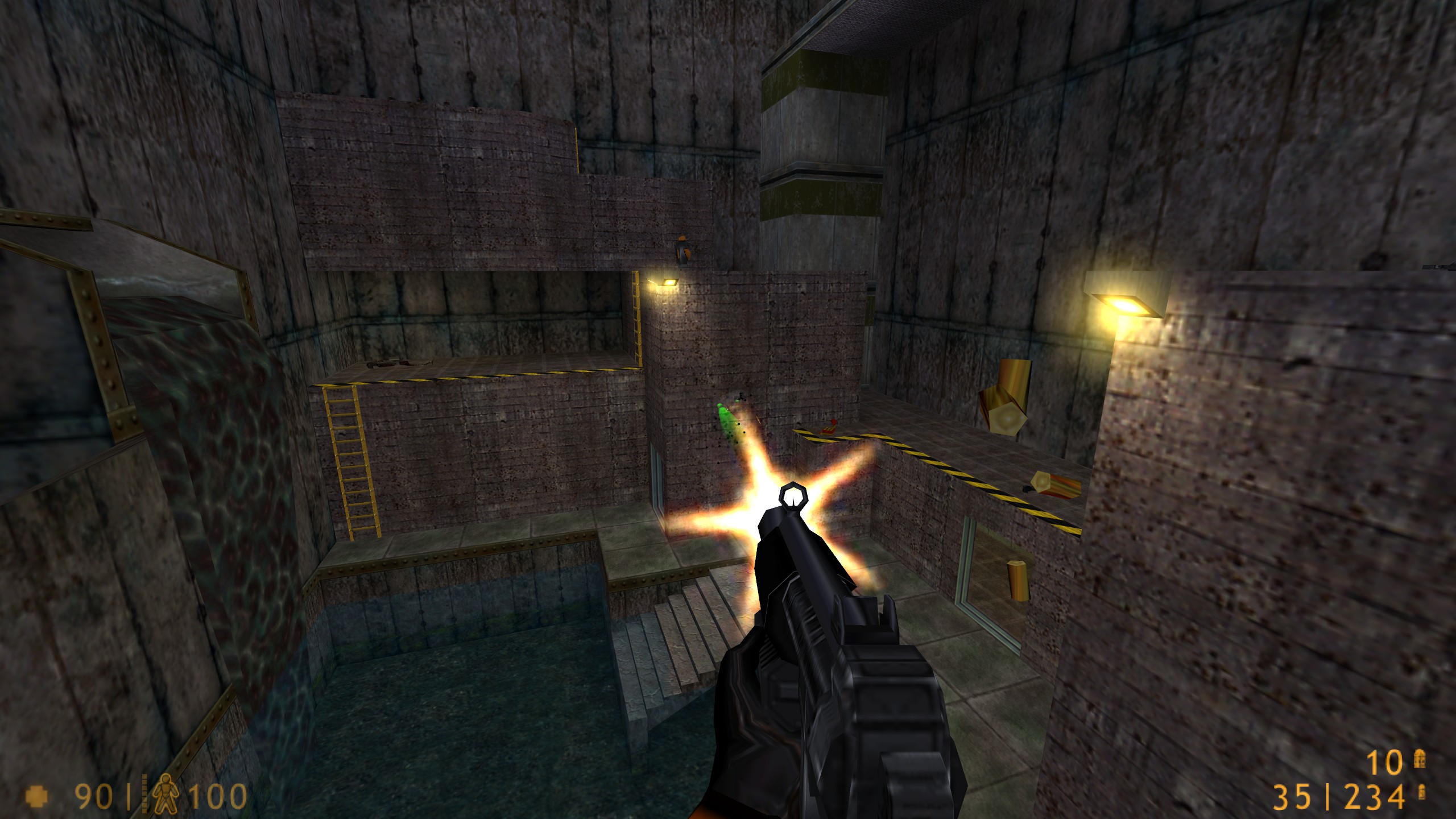
Half-Life tracers are the visible lines which follow some bullets as they travel through the game. Their colour, brightness, length and speed can all be adjusted using console commands, which gives you quite a bit of control over how they look.
This guide covers the main tracer settings and includes a few example configurations which you can copy directly into the console or your userconfig.cfg.
Step 1: Change the Tracer Colour
Tracer colours are controlled using normal RGB values between 0 and 255.
The three commands are:
tracerred
tracergreen
tracerblue
For example, to create yellow tracers you would use:
tracerred "255"
tracergreen "255"
tracerblue "0"
As with any RGB colour, you can mix the three values to create different colours. Setting all three values to 255 gives you white, while setting them all to 0 removes the colour completely.
Step 2: Adjust the Transparency
The transparency of the tracer is controlled using:
traceralphaThe value ranges from 0.0 to 1.0. A value of 0.0 makes the tracer invisible, while 1.0 makes it fully visible.
For example:
traceralpha "0.2"I find lower values work quite nicely because the tracers remain visible without becoming too distracting during a busy game.
Step 3: Adjust the Length and Speed
There are a few additional commands which control the shape and movement of the tracer.
traceroffset adjusts the position or offset of the tracer effect, while tracerlength controls the visible length of the tracer.
tracerspeed controls how quickly the tracer travels.
For example:
traceroffset "3"
tracerlength "2"
tracerspeed "2000"
There is no single correct setup here. It is worth experimenting with the values until you find something that suits the way you play.
A slower tracer can make the effect more noticeable:
traceroffset "5"
tracerlength "3"
tracerspeed "1000"
For something quicker and less noticeable:
traceroffset "1"
tracerlength "1"
tracerspeed "3000"
Step 4: Test the Settings
Start Half-Life and open the console. You can enter the tracer commands directly while the game is running and experiment with different values.
For example, the following gives you a light blue or cyan tracer:
tracerred "0"
tracergreen "255"
tracerblue "255"
traceralpha "0.3"
traceroffset "3"
tracerlength "2"
tracerspeed "2000"
The easiest way to test the changes is to load a map, give yourself a weapon which produces visible tracers and change the values from the console until you are happy with the result.
Saving Your Tracer Settings
Once you have found a combination you like, you can add the commands to your userconfig.cfg so that they are loaded automatically when Half-Life starts.
The file is normally located inside your valve folder:
Half-Life\valve\userconfig.cfgIf userconfig.cfg does not already exist, you can create it using a normal text editor.
For example:
tracerred "0"
tracergreen "255"
tracerblue "0"
traceralpha "0.2"
traceroffset "3"
tracerlength "2"
tracerspeed "2000"
Save the file and the settings should be applied each time the configuration is loaded.
Example Configurations
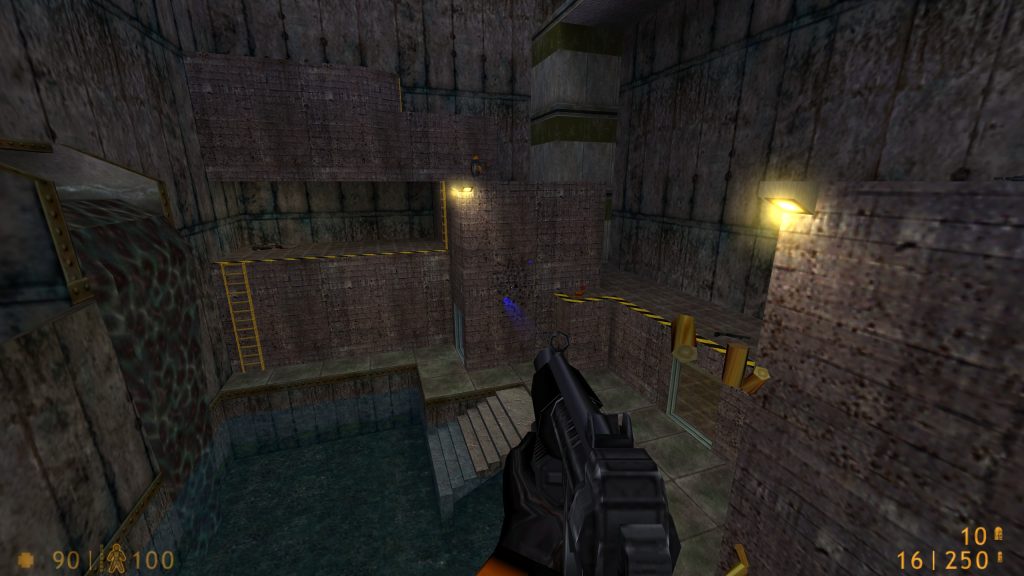
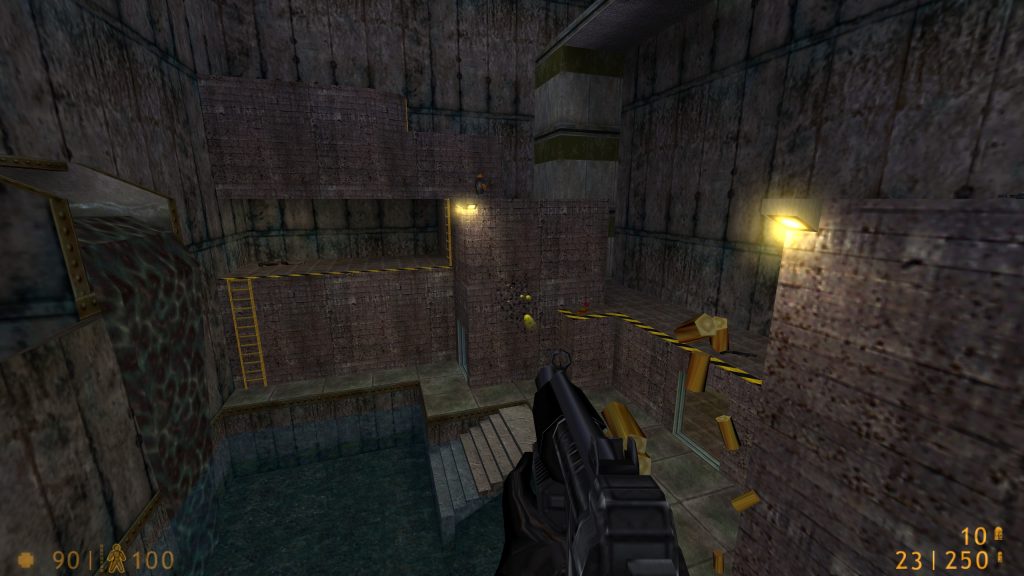
Below are a few simple examples using the same tracer settings with different colours.


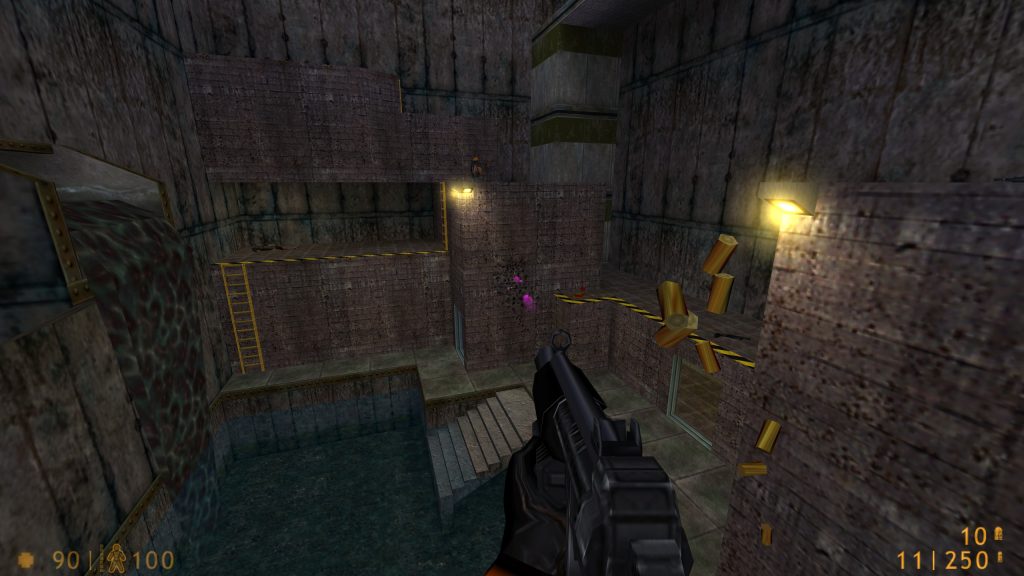
// Green Tracer
tracerred "0"
tracergreen "255"
tracerblue "0"
traceralpha "0.2"
traceroffset "3"
tracerlength "2"
tracerspeed "2000"
// Red Tracer
tracerred "255"
tracergreen "0"
tracerblue "0"
traceralpha "0.2"
traceroffset "3"
tracerlength "2"
tracerspeed "2000"// Blue Tracer
tracerred "0"
tracergreen "0"
tracerblue "255"
traceralpha "0.2"
traceroffset "3"
tracerlength "2"
tracerspeed "2000"// Yellow Tracer
tracerred "255"
tracergreen "255"
tracerblue "0"
traceralpha "0.2"
traceroffset "3"
tracerlength "2"
tracerspeed "2000"// Pink Tracer
tracerred "255"
tracergreen "0"
tracerblue "255"
traceralpha "0.2"
traceroffset "3"
tracerlength "2"
tracerspeed "2000"Counter-Strike 1.6
These tracer settings can also affect parts of Counter-Strike 1.6. One slightly amusing side effect is that changing the tracer colour can also change the colour of some of the sparks produced when bullets hit walls and other surfaces.
It is worth experimenting with the commands if you still play Counter-Strike 1.6, although not every tracer related effect behaves exactly the same way as it does in Half-Life.
Restoring the Default Settings
If you are only experimenting and do not want to keep the changes, remove the tracer commands from userconfig.cfg and restart the game.
If you entered the commands only through the console, restarting Half-Life should also return them to whatever values are loaded by your normal configuration.
Summary
- Tracer colour is controlled using RGB values from
0to255 traceralphacontrols tracer transparencytracerlengthcontrols the visible tracer lengthtraceroffsetadjusts the position of the tracer effecttracerspeedcontrols how quickly the tracer travels- Settings can be saved inside
userconfig.cfg - Some of the settings also affect visual effects in Counter-Strike 1.6